Promo Code Experience – Member App
When a member purchases through the member app, the promo code is applied before the purchase is confirmed.
-
The member selects a plan, pack, or product.
-
Then tap Purchase.
-
On the Confirm Purchase (checkout) page, enters the promo code.
-
The checkout page refreshes and shows the discounted amount, confirming whether the promo code worked.
-
Review the updated total and then confirms the purchase.
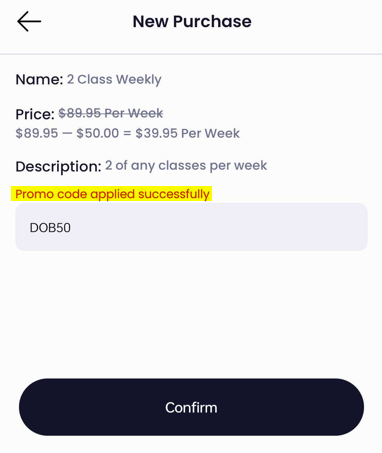
This allows the member to clearly see the discount applied before committing to the purchase.
Promo Code Experience – POS (Staff)
In the POS, the promo code is also applied before payment is taken, even though it may appear later in the flow.
-
Select the plan, pack, or product and move it across in the POS.
-
A member name must be entered.
-
Once a member is selected, the promo code field and Pay button appear (no payment has been taken yet).
-
Enter the promo code.
-
The page refreshes and displays the discounted total, confirming the promo code has been applied.
-
After confirming the discount, proceed to Pay and complete the transaction using the chosen payment method.
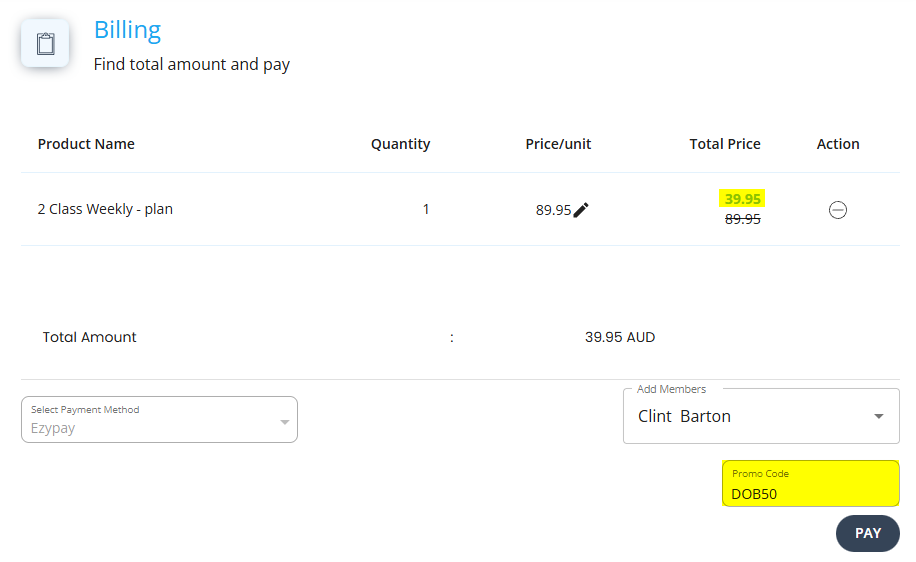
This ensures staff can clearly see whether the promo code has worked before committing to payment.
