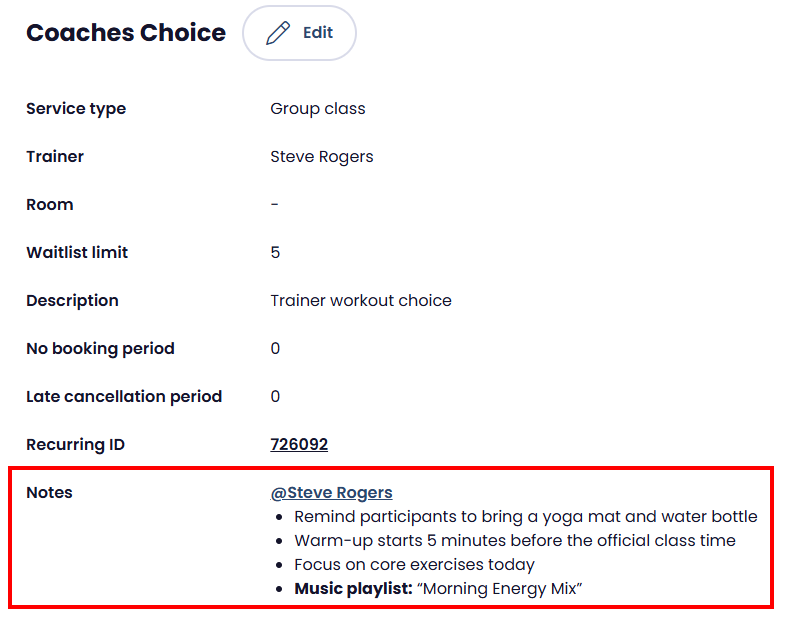
How to Add Notes When Creating a New Class
1. Go to Schedule, then click New.

2. Fill in the required class details (service type, service name, trainer, etc.).
3. Scroll to the Description section.
4. Click on Add notes.
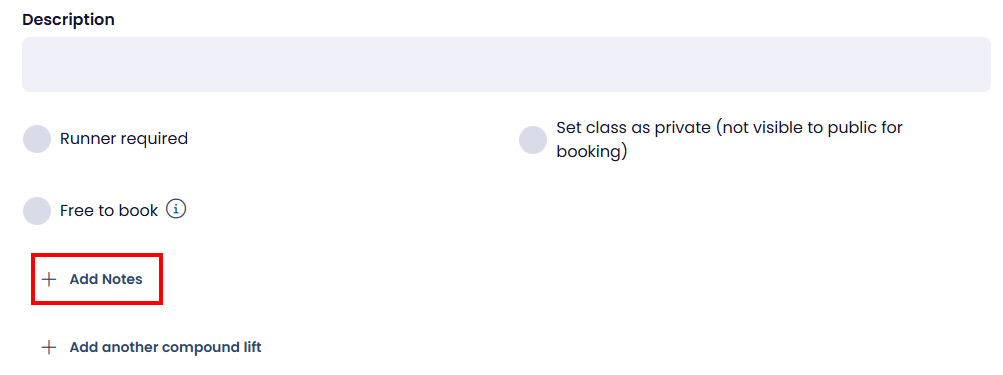
5. Enter your notes.
- Use bullet points if needed or,
- tag a staff member.
6. Enter the rest of the class details.
7. Click Save to create the class.
How to Add or Edit Notes for an Existing Class
-
Go to Schedule in the Staff Portal.
-
Select the class or session you want to update.
-
Click Edit.
-
Locate the Notes section.
-
Add or update the notes as needed.
-
Click Save to apply the changes.
